
Nextcloud Talk
Open Source Video Conferencing

Monday 29th December 2025
This is the second review on a series of posts regarding open source alternatives to Zoom. The first one was about Brave Talk. I planned to make this review earlier, but unlike Brave Talk, I had install the server myself, which turned out to be a lot more work than anticipated.
Properties of Nextcloud Talk
Nextcloud Talk is a web-based video conferencing addon to Nextcloud. It can run within your Nextcloud server, but for best performance and functionality, it is best to use an HPB = High-Performance Backend. This can either be achieved by installing it as a Virtual Machine, standalone container, or include it in the Nextcloud AiO installation. Without it it won’t scale very well beyond 4 participants.
Security
Nextcloud Talk is using WebRTC, which means that all calls are encrypted by default. The encryption is as safe as the server’s TLS/SSL certificate. That puts a limit on what type of ciphers and encryption you can choose since it has to be approved by NIST.
Chats are stored as clear text inside the Nextcloud servers database. However, if you control the server, you can enable server-side encryption on it.
Scalability
Without a HPB, the limit is somewhere between 4-6 participants. That is because the communication is peer-to-peer and it consumes a lot of bandwidth and CPU to multiply the stream.
With a HPB, I haven’t seen a maximum number. It doesn’t seem to be any software limitation. As far as i know it might work with over 100 users, as long as you have a powerful enough server and network infrastructure.
Nextcloud Talk Functions
Once you have set it up correctly, Nextcloud offers many of the features that can be found in other video conferencing platforms:
Recording
Screen-sharing
Moderator functions
Call owner can mute everyone
Breakout rooms
Guest login
Chat and file-sharing
iOS and android app available
End-to-End Encryption (Experimental and desktop app only)
The difference with E2EE and TLS encryption is that the communication is secure all the way, not just to the TURN server. In theory, somebody could be eavesdropping on your communication at the server-side. This is a good alternative if you are using a cloud platform which you may not 100% trust.
Nextcloud Talk does not support taking control over somebody's desktop. However, there is a good alternative app for that: Rustdesk
Setting up your own Nextcloud Talk Server
Setting up external HPB Virtual Machine
I have been working on a setup to run Nextcloud Talk from my home network. That lead me to learn a lot of new things regarding web-hosting. For instance, I had to learn how to setup Reverse Proxy. I also learnt a few things about WebRTC troubleshooting.
This post have been years in the making. I put a lot of effort into this, and now it seems like most issues that I had are fixed. These are all related posts about the HPB VM:
Updating the HPB VM, which fixed an issue with Firefox Browser
Fixing the public IPv4 WEbRTC candidate - In later versions of the HPB VM, COTURN NAT Traversal did not work, but I found a workaround.
However, I don’t endorse this solution. The fact that I have written 4 posts about this one topic should say something about the pain I have been through. Besides, the Nextcloud team seems to have put more effort into the their Nextcloud Talk container.
Nextcloud Talk with a Nextcloud AIO installation
This is actually much easier to setup. You only need to port forward TCP/UDP 3478 to your Nextcloud AiO instance and it magically works, no Joke! However, make sure that NAT reflection is turned on on your firewall, because the Nextcloud container communicates with the Talk container using the IP address found in the public DNS record (It’s all documented in the Reverse-Proxy guide linked earlier).
User experience
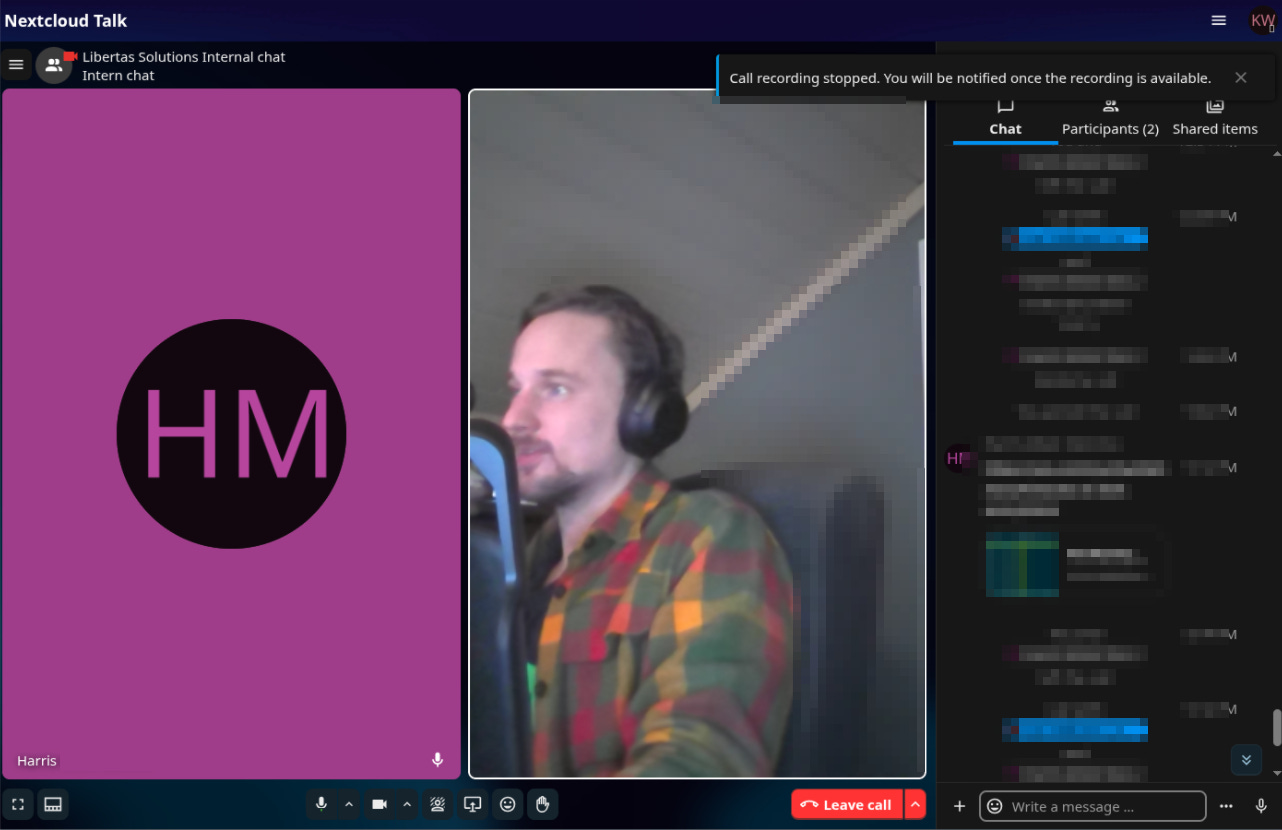
Nextcloud Talk can be run in your web-browser or as a desktop/mobile app. Both options works great and are very intuitive. Not much of a learning curve if you are used to Zoom or Teams.
Self-Hosting
Self-hosting a Nextcloud Talk instance requires patience and dedication. When it works, it’s great. When it doesn’t work, it’s a pain. Sometimes it works for some participants but not for others. That can be very hard to troubleshoot because it’s not so easy to reproduce the issue. I have struggled with many types of issues, from connection problems after updates, or one-way audio/video. One thing I can say is that through the years, the process of setting it up becomes easier and easier. You also learn a lot along the way.
Note: Remember that it might not always be the fault of Nextcloud misconfiguration either. There are many layers in the network infrastructure that could interfere with the UDP traffic. That is why the more complex your infrastructure is, the harder it becomes to troubleshoot.
Recording
The recording feature works OK. Voice, audio and screensharing quality is fine but the video quality is a bit choppy, like 30 FPS. I haven’t been able to figure out if it’s possible to increase the video performance, but as long as voice and screensharing is crystal clear, that is good enough for me.
Voice and Video
If you compare a zoom meeting with Nextcloud Talk side by side, the audio quality is significantly better in NCT. Videoquality is hard to say because you won’t get better quality than the camera that you are using, and I don’t have anything special.
Verdict
NCT is a great alternative to Zoom:
The fact that you can self-host and turn on end-to-end encryption makes it very privacy friendly.
The voice quality is excellent.
Web-based application makes it easy for others to adapt.
All necessary features are included.
Also, everything for free without any license costs!
Of course, nothing is entirely free. You need sufficient hardware and you have to put a lot of effort into setting it up. If you don’t have the skills or the patience, you do best in finding a Nextcloud provider and subscribe to them. However, the installation process has been simplified dramatically over the years and I have all the necessary guides on this Substack for you to set it up.