
Nextcloud: LDAPS Configuration with FreeIPA
How-To: Nextcloud and FreeIPA

Monday 13th October 2025
This How-To guide will describe how to configure Nextcloud to connect to a FreeIPA LDAP server.
Prerequisites
FreeIPA LDAP Server
Obviously you need an LDAP server to connect to. To Setup FreeIPA, follow this guide:
https://opensourceisfun.substack.com/p/install-freeipa-ca-less-with-dns
There are other guides to setup users, groups and admin rights on my substack somewhere. Just search for “freeipa” for more information.
Internal Root CA
To enable the “S” in LDAPS, you need an internal certificate authority setup. FreeIPA inlcudes a CA but if you want to to setup EJBCA, which is a more sophisticated open source PKI platform, start here:
https://opensourceisfun.substack.com/p/install-ejbca-with-podmandocker-compose
Install the CA Certificate
Make sure your internal CA certificate is installed on the Nextcloud server. It should be, if you used the Nextcloud AiO installation with the NEXTCLOUD_TRUSTED_CACERTS_DIR environment. But for some reason it might not work anyway. You can then use these instructions:
Import the certificate
Copy the certificate to the compose project and change the owner to www-data
mkdir certs
cp /etc/ioa/ca.crt certs/ca.crt
sudo chown -R www-data:www-data certs/
Copy the cert into the Nextcloud container
docker cp certs/ca.crt nextcloud-aio-nextcloud:/tmp/ca.crtGo inside the container:
docker exec -it --user www-data nextcloud-aio-nextcloud shThen run following command:
php occ security:certificates:import /tmp/ca.crtVerify:
php occ security:certificates
+-----------+----------------------------+--------------------+---------
| File Name | Common Name   | Organization         | Valid
+-----------+----------------------------+--------------------+---------
| ca.crt    | example CA    | example organization | August 24, 2055
+-----------+----------------------------+--------------------+---------
Nextcloud LDAPS Settings
Inside Nextcloud WebGUI logged in as admin, navigate to System Administration > LDAP/AD integration. Change the parameters below to fit your environment, but you get that:
Host: ipa.int.libertassolutions.io Port: 636 (LDAPS)
Login DN: uid=admin,cn=users,cn=accounts,dc=int,dc=libertassolutions,dc=io
Password: XXXXXXXXXXX (password of the admin user)
Base DN: dc=int,dc=libertassolutions,dc=io
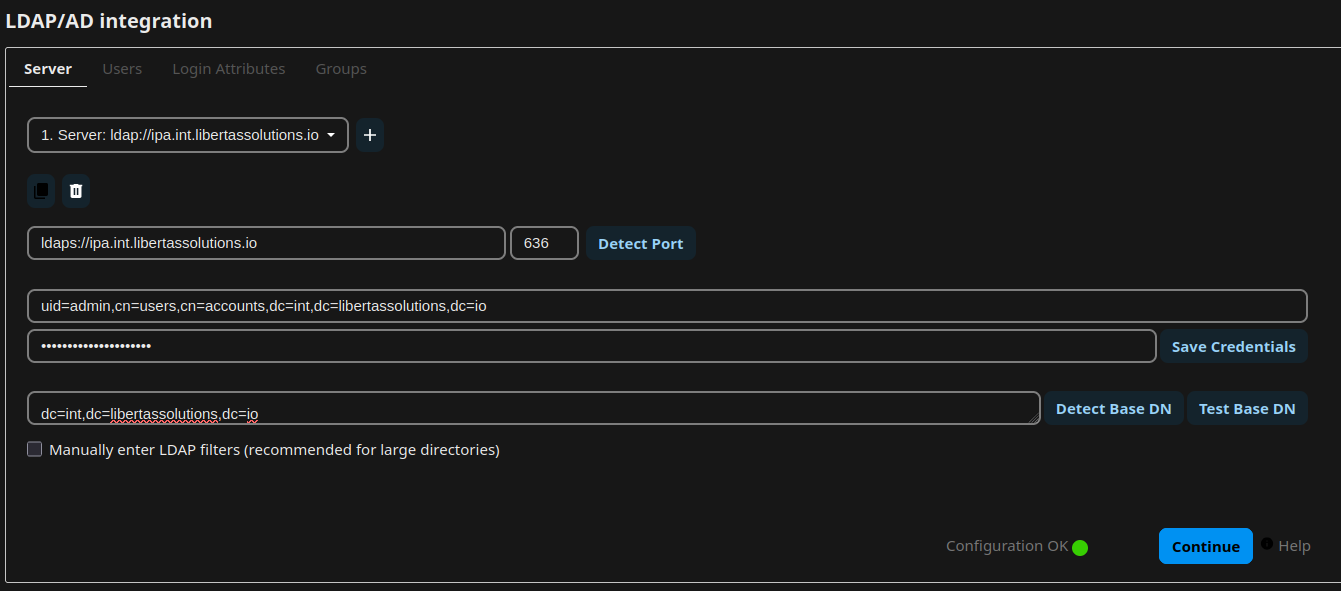
Note: the Login DN is specific for FreeIPA.
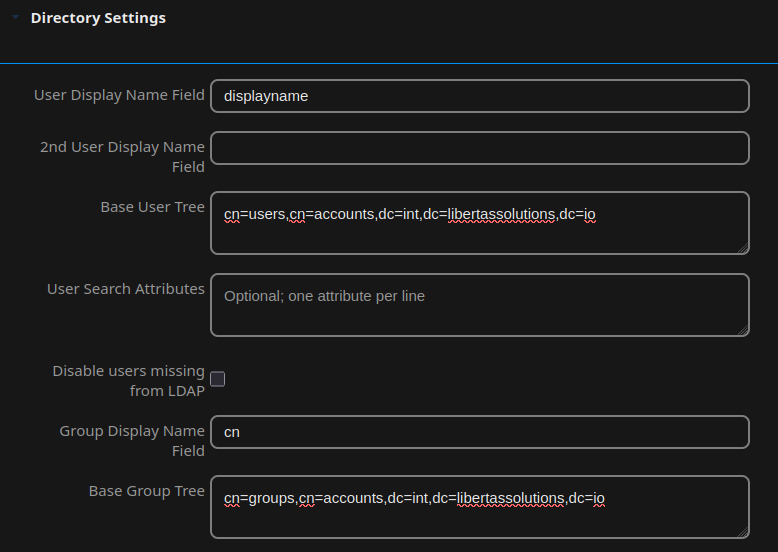
Under Advanced > Directory Settings:
User Display Name Field: displayName
Base User Tree: cn=users,cn=accounts,dc=int,dc=libertassolutions,dc=io
Group Display Name Field: cn
Group Base Tree: cn=groups,cn=accounts,dc=int,dc=libertassolutions,dc=io
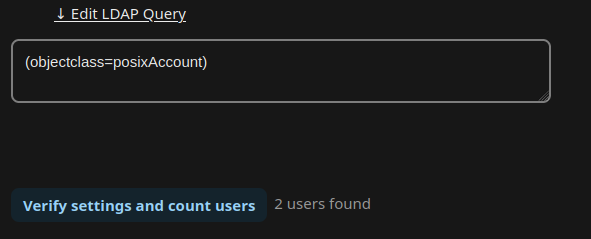
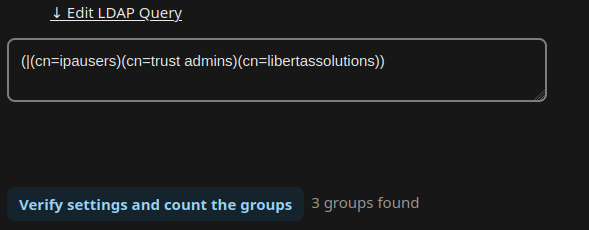
Query filters for the tabs Users and Groups:
Users: (objectclass=posixAccount)
Groups: (|(cn=ipausers)(cn=trust admins)(cn=libertassolutions))
In the Expert tab:
UUID Attribute for Users: ipaUniqueID
UUID Attribute for Groups: ipaUniqueID
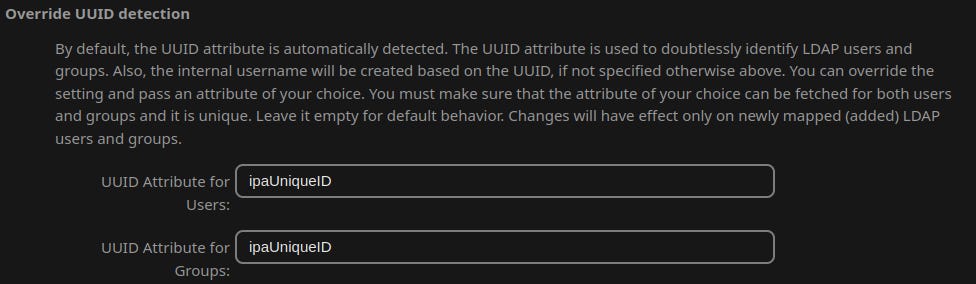
Note: I’m not sure if this last step i necessary. At first it didn’t work without it, but second time the LDAP server connected without any problem. But at least it won’t make it worse.
Update: Enable LDAP users to change password within Nextcloud
Optionally, under Advanced > Directory settings you can enable LDAP user to be able to change their password within Nextcloud.
