Install and configure SecureCRT on Linux
How-To: SecureCRT

Monday 9th February 2026
All the serious network technicians use SecureCRT for their terminal access. The ones who still use putty after years of experience are hopeless and should not be trusted with advanced projects. I don’t mean you must use SecureCRT, but anything else than putty please.
Unfortunately SecureCRT is not open source but I don’t know of any other tool that can replace it. At least it got Linux support.
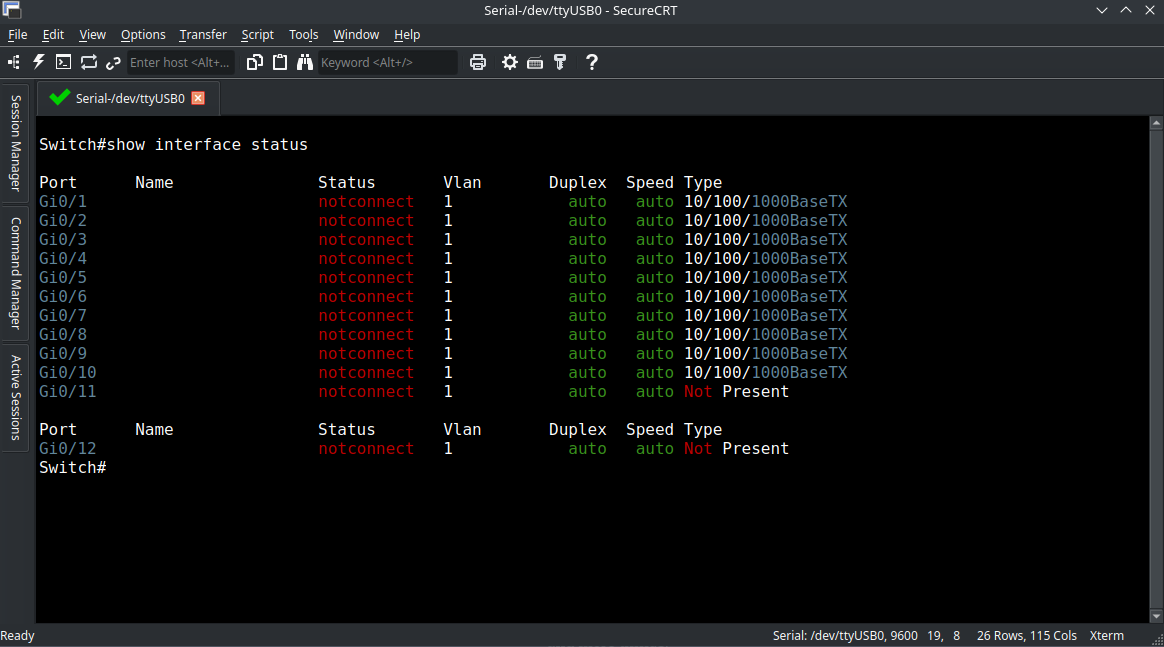
Why SecureCRT is so great is because of the features it brings:
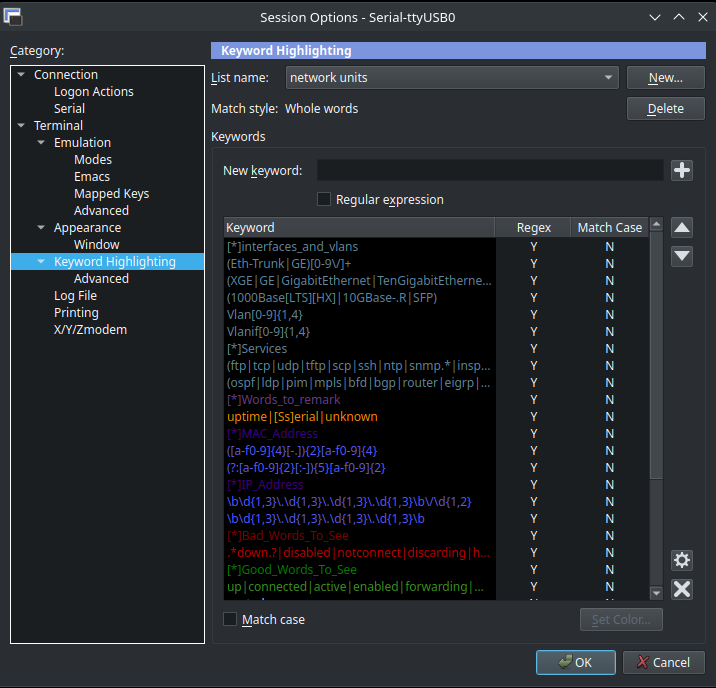
Keyword highlights
tabs
a list of saved sessions, with folder structure
share sessions with colleagues
authenticate using SSH keys
and more.
However, the one feature I miss is the function to authenticate using U2F authentiaction.
I don’t know why it’s so hard to find an open source alternative that could do all these features. One alternative that I’m looking into is Apache Guacamole, which supports VNC, RDP and SSH. Unfortunately it doesn’t support serial connection.
Now the question is: Why do I feel like I have to write an instruction on how to install this program on Linux? Because the way Linux handles permissions, it’s not as straight forward as it is on Windows.
Installing SecureCRT on Ubuntu
Installing it on debial-based distribution is no problem since SecureCRT has a .deb file available:
https://www.vandyke.com/cgi-bin/releases.php?product=securecrt
sudo apt install ./scrt-9.7.0-3761.ubuntu24-64.x86_64.deb
Configure SecureCRT
I will only cover what i consider to be the most important settings. For the other features you can easily find instructions somewhere else on the Internet.
Configuring serial port permissions
In Windows there are less restrictions for the user when accessing the serial port. In Linux however, you can’t access it by default:
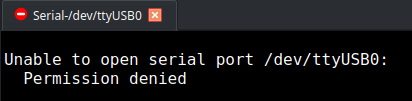
This is because the user is not a member of the dialout group which has read/write access to the serial port:
$ ls -l /dev/ttyUSB0
crw-rw---- 1 root dialout 188, 0 Feb  4 11:46 /dev/ttyUSB0
One simple solutions is to add a user to that group:
sudo usermod -a -G dialout $USER
Then reboot the system.
Note: I tried to logout and log back in at first but that didn’t help, even if it usually is enough to do that.
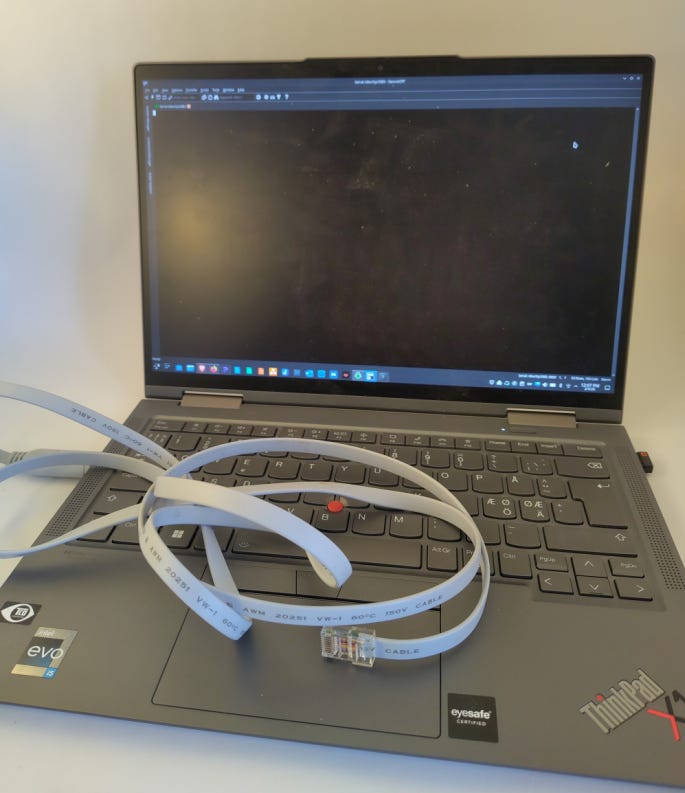
Now the console access works:
Import Keyword Highlights
Once you use this feature, you can’t live without it.
There are lists on the Internet with predefined keyword highlights that are made for networking. I don’t remember where I got mine from but you can probably find one on the Internet.
Download the .ini file, create this directory and put the .ini file in there:
mkdir /home/$USER/.vandyke/SecureCRT/Config/Keywords/Note: Other user configuration also get stored under .vandyke/SecureCRT/Config. Sessions for example.
Then you can add the Keyword highlights under Options > Session Options > Keyword Highlitning