Wireguard: Connect clients
How-To: Wireguard Client Setup

Thursday 30th October 2025
In the last post I described how to setup a Wireguard server in a docker compose project. Now it’s time to connect some clients.
Connect clients
Smartphones
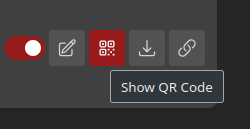
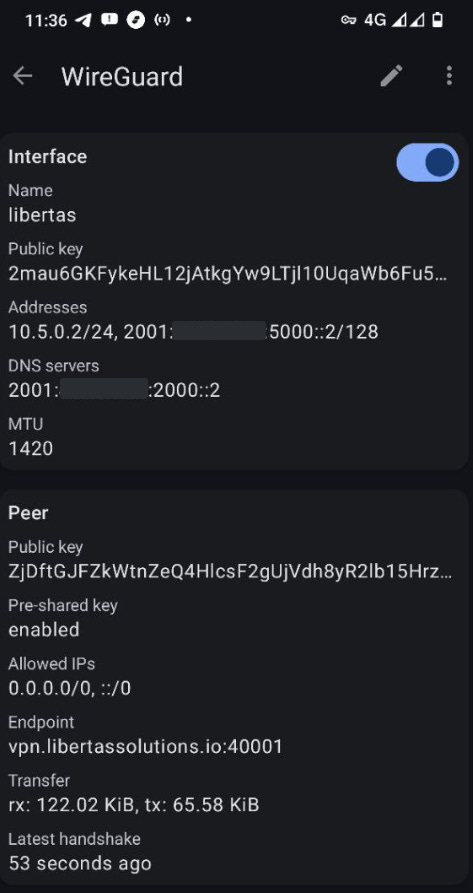
A smartphone is very easy to connect because you only need to download the Wireguard app and scan a QR code from inside the app. You get the QR code from the Clients page in the Wireguard HTTP frontend.
Kubuntu Workstation
If you search on the Internet for “Setup Wireguard client for Ubuntu” you will get long confusing guides on how to do it. I thought in 2025 there must be a more user-friendly approach, and there is. All that CLI config is unnecessary because you can just add a VPN profile through the KDE plasma GUI.
Note: There probably are similar ways to do it on Ubuntu or Mint Workstations as well.
To setup Wireguard on an Kubuntu Desktop:
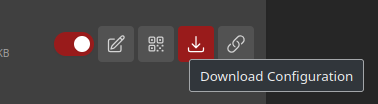
Step 1: Download the VPN profile from the Wireguard management interface.
Step 2: Add the VPN profile by navigating to Network Settings
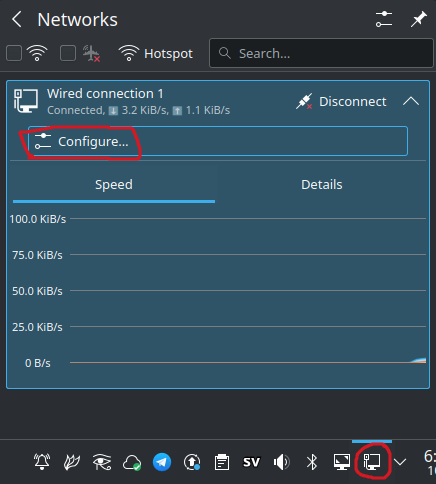
Click on the + below available connections and choose Import VPN connection…
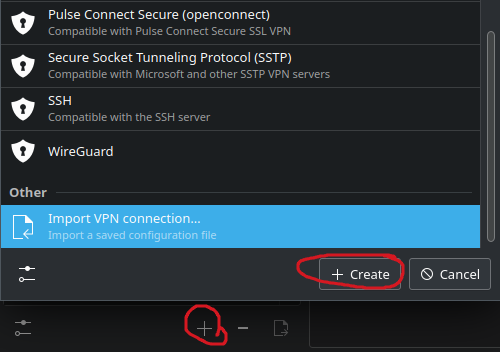
Choose the file you downloaded and the connection should start right away. The system recognizes it as a Wireguard configuration:
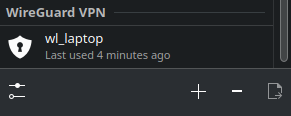
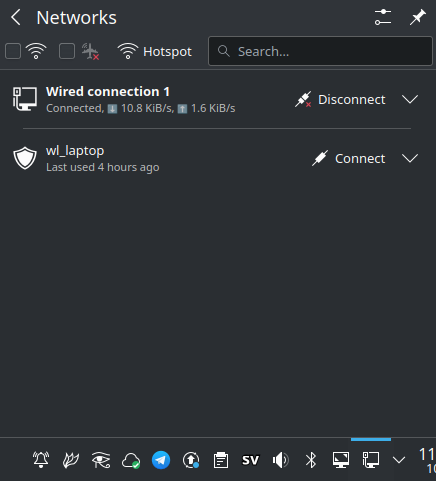
You can easily toggle the VPN connection from the network icon down in the taskbar: