
pfSense: Implement IDS/IPS with Snort
How-To: pfSense install Snort

Monday 8th December 2025
Background
After setting up pfBlocker I felt that it was missing some IPv6 protection. To fill that gap I decided to try out IDS/IPS.
There are many opinions about IDS. One concern is that it is resource hungry. Another reason is that it not so useful when looking at encrypted traffic like HTTPS. So how much effectiveness do you get versus the amount of resources you have to use? Since I didn’t find any other alternative solution, I decided to try it out for myself.
Snort IDS/IPS

This information is paraphrased from Snort.org:
Snort is an Open Source Intrusion Prevention System (IPS). Snort IPS uses a series of rules that help define malicious network activity and uses those rules to find packets that match against them and generates alerts.
Snort has three primary uses:
As a packet sniffer like tcpdump;
as a packet logger — which is useful for network traffic debugging;
or it can be used as a full-blown network intrusion prevention system.
Considerations: Hardware Requirements
IDS can be resource intensive. I have a Netgate SG-1100 with only 1GB of RAM available. Almost half is already used up by other services. I don’t think I will be able to activate to many rules but at least I can do some learning.
Snort Installation
Navigate to System > Package Manager > Available Packages and search for Snort
Snort Configuration
Global Settings
Navigate to Services > Snort > Global Settings
choose the ruleset you want to use. There is one free option and one paid option:
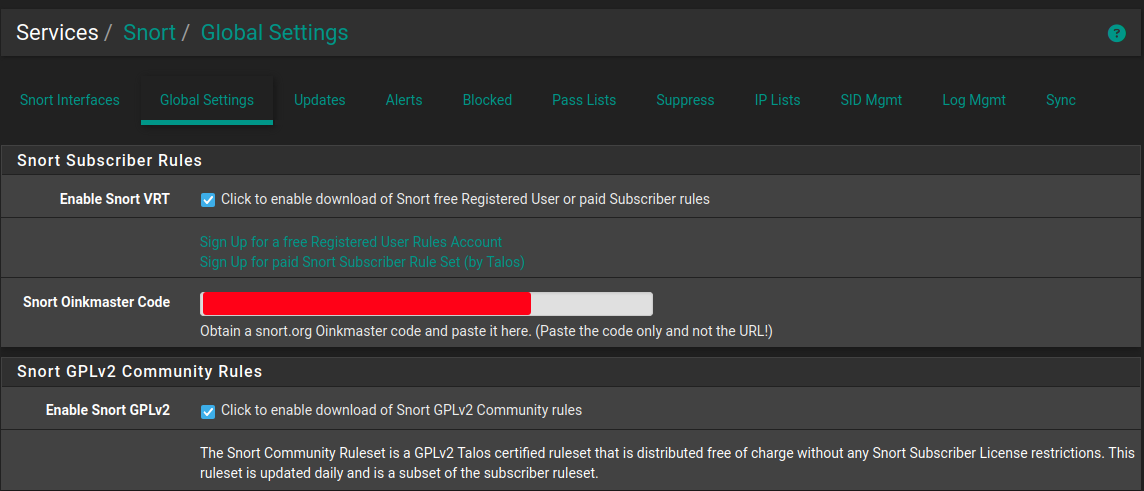
Enable Emerging Threats Rules
Enable OpenAppID - this is used to identify applications
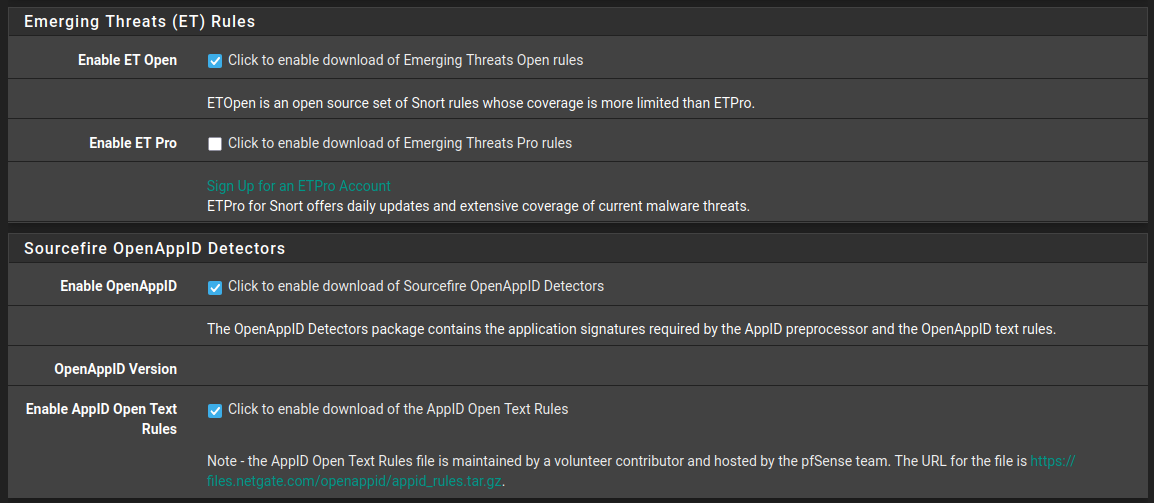
Enable FEODO Tracker Botnet C2 IP Rules
Specify Update Interval and Update Start Time. I choose 7 days because the resource utilization spikes every time it reloads the rule-sets.
Hide Deprecated Rules Categories - because why show them?
Remove Blocked Hosts after a certain time. Start out with 1 hour because you may get many false positives and it’s annoying to have to wait more than an hour to be allowed in again
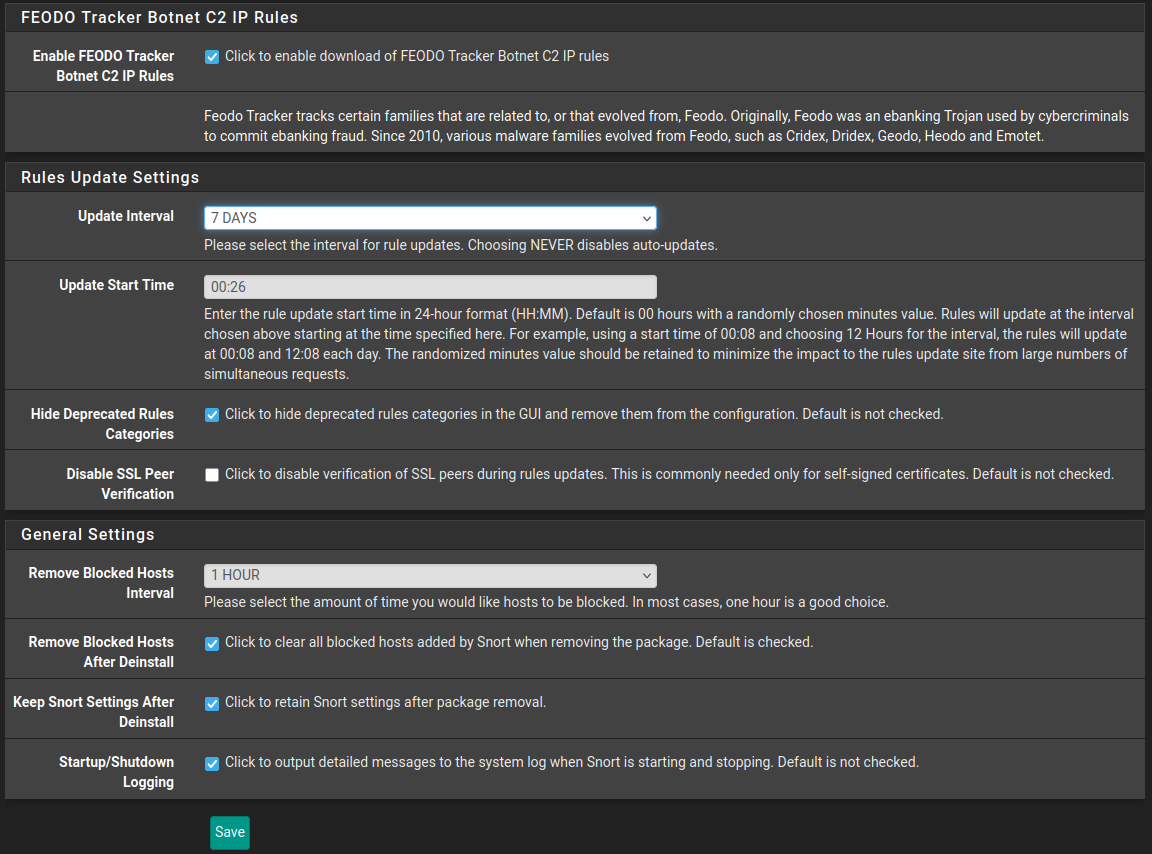
Click Save
Update
Go to the tab Updates and update the rules.
IP Lists
You can add lists of IP addresses to monitor under the tab IP Lists. If you have pfBlocker, these lists are probably redundant. You don’t need to remove them as long as you don’t activate those lists on the interfaces.
Interface Settings
Navigate to the Snort Interfaces tab to add interfaces.
Do not enable Snort on the WAN interface. That’s is just going to create a lot of noise and performance issues. That traffic is getting blocked by the firewall anyway. What you are interested in is the traffic anomalies inside your network.
Click Add and choose one of your LAN interfaces. Leave everything on their default values and click Save.
Go back to the Snort Interfaces overview and start the snort process.
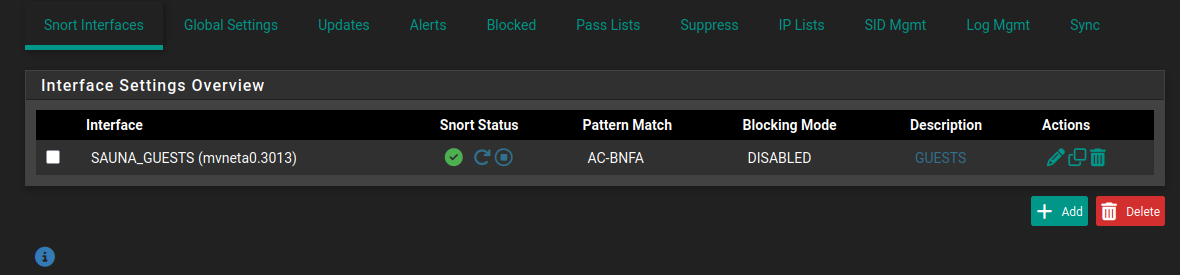
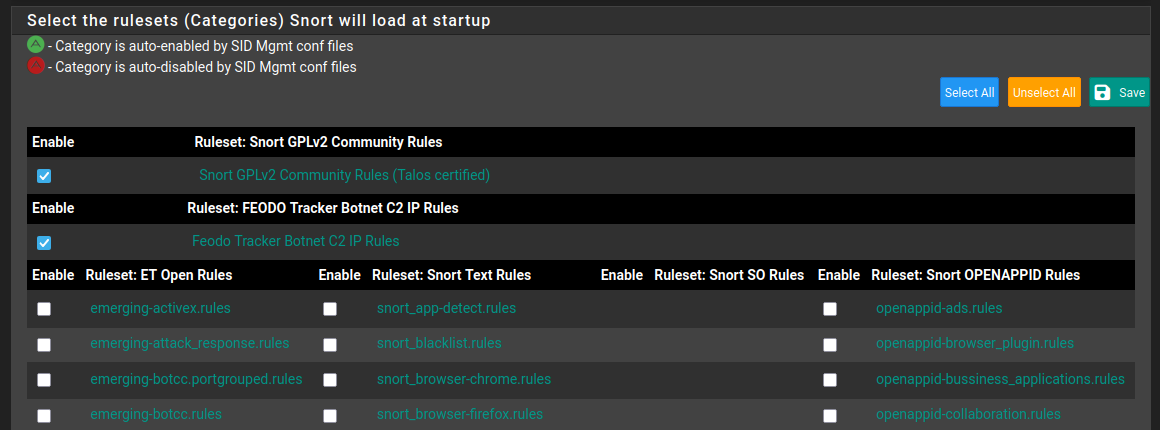
Edit the interface to apply rules to the interface by going to the TAB ifname Categories
Depending on what you are going to use snort for; either to look for threats or use it to gather information on connected devices, the choice of rules are up to you. Personally, since this SG-1100 has limited resources, I chose to prioritize threat-related rules.
Notes:
When you click Save the snort process will reload and you have to wait 15 seconds before configuring more interfaces.
I tried to enable all ET rules but that crashed the snort, pfblocker and DNS resolver processes. Even after enabling just a few of the ET rules, the pfSense starts to crash. Therefore I only enabled the Community and FEODO rules.
Adding more interfaces increases the required RAM and CPU Utilization. My limit before things are going unstable seems to be 2 interfaces with the same rule-sets. Choose your interfaces wisely.
IP Blocking
Under the tab IP Blocking you can activate IP-Based blocking but again, that feature overlaps with pfblocker.
Verification
Event Log
In the tab Alerts you can see any traffic that has matched a certain pattern in the rule-sets. You can also see it on the pfSense start screen:
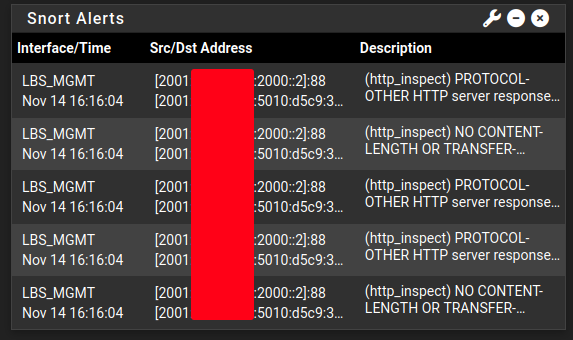
As you can see, IPv6 is obviously supported and these messages are probably false positives because I have not experienced any issues regarding to kerberos authentication.
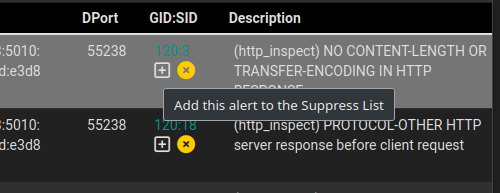
In the Alerts tab you can remove this rule so it won’t be triggered:

Alternatively, you can choose to suppress the rule. The traffic will then still be inspected for that rule, but you won’t get notified.
Resource Utilization
Since this tool is so resource intensive, it’s good to monitor the RAM and CPU. Considering that in the current idle state with Snort, pfBlocker, FRR, HAProxy, DNS Resolver and a bunch of other features active, the RAM and CPU utilization is not that bad. The CPU usage varies from second to second but the RAM is pretty stable around 40-50%.
However, under Status > Montoring you can see that when during this recent hour when I have tested to see where the limit goes, you can see that the amount of free memory was almost depleted:
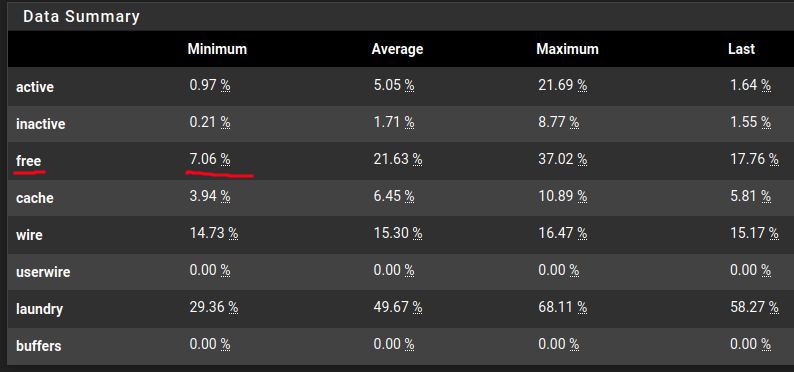
Note: It probably was depleted but that event couldn’t be captured.
CPU Doesn’t seem to be as big of an issue:
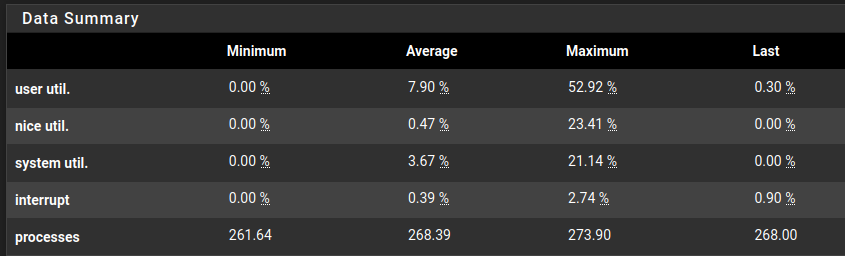
The biggest bottleneck on a SG-1100 is therefore the RAM. While in idle state it’s not that bad, every time the rule-sets reloads, it temporarily increases to a stage where services potentially starts to crash. Therefore I can only use Snort in a very limited way. It’s better than nothing and probably good enough for a SOHO. For anything other than that, I would use an appliance with at least 4GB of RAM.
Special Mention
A big thank you to Lawrence Systems that makes great tutorials on pfSense and TrueNAS! I recommend watching their video for more information on how to monitor with Snort.
Really practical guide on the hardware resourse tradeoffs for IDS/IPS deployemnt. The 1GB RAM limit on the SG-1100 makes for a good case study since most guides skip over these real-world constraints. Limiting rule-sets to Community and FEODO becuase of memory pressure is exactly the kind of constraint-driven design decision people need to see documented.