
Nextcloud Encryption Part 2: Enable E2EE
How-To: Nextcloud End-to-End Encryption

Monday 22nd December 2025
In Part 1 I explained why E2EE is the superior choice over Server-Side Encryption. A short summary is that E2EE encrypts the files in a way that only the user can view the contents of the encrypted directory. Server-Side Encryption only encrypts the file at rest on the server, which is redundant because you can achieve the same result with LUKS or Veracrypt. In this part I document my experience activating E2EE.
A quick summary of my experience: The best time to enable E2EE is at the moment when you first create your Nextcloud instance. It has been a bit of a pain for me to get everything synchronized when I already had a lot of data stored on multiple devices. Lucky for me, I only had two user accounts. I don’t envy anyone who has more than that.

Disclaimer: Proceed with caution
Don’t say I didn’t warn you. Any mistake can have devastating consequences when dealing with data. Proceed with caution and always keep a backup somewhere safe.
This is a documentation of my own experience. It may not be the same for you and perhaps not best practice, but it worked for me. However…
…Since the latest version of Nextcloud AiO, E2EE has become completely broken for me. No matter what I do, I eventually get sync errors, metadata problems or encrypted files and folders just disappear. I’m simply not able to copy my files over to an encrypted folder without getting any problems. I have given up on this for now.
Alternative: Cryptomator
You may want to consider an alternatve E2EE solution: Cryptomator. This application can be used with any cloud storage solution. It’s not as flexible as Nextcloud E2EE, but at least it works and it’s stable. Also, it syncs a lot faster.
Disabling Server-Side Encryption
As mentioned in Part 1, I made the mistake of enabling Server-Side Encryption.
Step 0: First thing to do is to make a backup through the Nextcloud AIO interface in case things go south, which, in my experience, is very likely.
Logged in as Admin, navigate to Administration Settings > Open AIO Interface. Click on Start Backup. This will shutdown all containers while the backup is running.
Step 1: Disable Server-Side Encryption. The only way to disable it is through the CLI. Login to your nextcloud-aio-nextcloud container:
docker container exec -it nextcloud-aio-nextcloud bashAccording to the official documentation, it is only one line:
php occ encryption:decrypt-allIt will put your server into maintenance mode and back. It also takes care of disabling encryption when all files have been decrypted. If the command is aborted some files have been decrypted and others are still encrypted. In this case the command will keep the encryption turned on and Nextcloud can handle this situation fine. You can proceed decrypting the remaining files by calling the command again once the problems that caused the abortion have been resolved.
The unofficial but inevitable Step 2: Delete everything and start over.
For me, this didn’t work as expected. Many files were corrupted on the server and could not be opened after encryption was disabled. I tried to fix it and restore the backup but I kept getting the same problem. Finally my patience ran out and I just took a local backup of all my files, deleted everything inside the nextcloud server, did a file scan, synchronized, and put everything back and re-synchronized all my files.
The files are stored here, if you run Nextcloud AIO:
/mnt/ncdata/UserID/files
And here, if Server-Side Encryption was turned on:
/mnt/ncdata/UserID/files_encrypted/keys/files/
After removing every trace of data, perform a filescan, either for all or per user:
php occ files:scan UserID -vvvNote: After you deleted everything on the server, your clients may synchronize those changes and delete everything on your machines as well. That is why it is a good idea to have a local backup outside the Nextcloud Directory.
Step 3: When everything is synchronized back to 0, You can start copying back the data you intend not to have E2EE on.
Note: I know all this sounds like a nightmare if you have 100 users, and that’s because it is. If that is your scenario then I’m sorry, I don’t have the solution you search for.
Enabling End-to-End Encryption
Nextcloud needs to have the E2EE app installed and activated so users can encrypt their content.
Considerations
As explained in Part 1, When E2EE is enabled on a directory, you can’t use apps like Nextcloud Office anymore because the files in the webGUI will be inaccessible.
Notice that the app has a pretty bad rating:
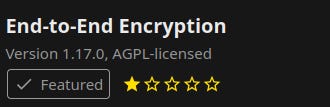
This is may be because users have had the wrong expectations of it, as this user have explained in his review:
“Daniel Sterzenbach:
Works reliably if you understand how E2EE is designed
I’ve been using the End-to-End Encryption app across desktop and mobile clients, and my experience has been very positive. The setup was smooth, and once you understand the intended workflow, it works exactly as expected.
Some remarks in other reviews seem to come from misunderstandings of how E2EE works:
Activation order: It’s important to initialize E2EE consistently across devices with the same mnemonic. If you mix the order, you may run into issues, but that’s not a bug — it’s part of how the trust model ensures security.
Empty folder requirement: Encrypting only empty folders is by design. It prevents accidental partial encryption. Once the folder is encrypted, you can copy your files into it, and everything will be handled correctly by the client.
Renaming folders: When you rename an encrypted folder, the client re-uploads it because E2EE treats the encrypted container as a whole unit. That may feel inconvenient, but it’s a side-effect of true end-to-end security.
Web interface behavior: E2EE is intentionally client-side only. The web interface cannot decrypt files, which is why prompts and dialogs behave differently from “normal” Nextcloud usage. That’s part of the zero-knowledge approach.
Overall, this app is not meant for all of your Nextcloud data. It’s the right tool when you want maximum protection for highly sensitive files — and in that role, it does its job well.
Kudos to the developers for bringing real end-to-end encryption to Nextcloud!”
Although my own experiences with it suggests that there are more to it than just a misunderstanding. It was pretty stable for a while, until I installed a new version of Nextcloud.
Nextcloud Server Configuration
Login as admin, navigate to Apps and search for E2EE or end to end. After you activated the app, you can start configuring the client.
Nextcloud Client Configuration
Restart your Nextcloud client software on your machine. This should trigger a banner inside Settings that says: “This account is eligible for end-to-end encryption. Activate now”
If you have existing data you want to have encrypted, you need to create a new folder and move all data to that one.
Then Right-click on the empty folder inside nextcloud client settings and choose encrypt:
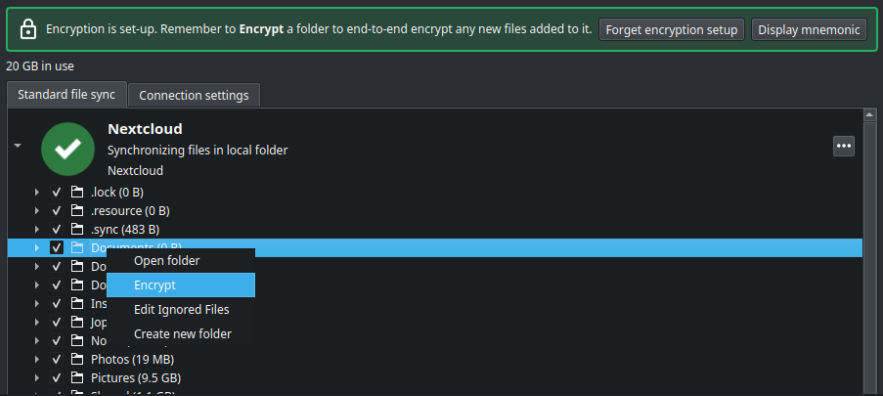
Then copy the data (safety first) from the backup folder to the encrypted folder.
Note: It feels like synchronization of encrypted data takes significantly longer time than unencrypted data.
Verification
In the WebGUI you will see that the folder is encrypted:

If you go inside the folder it will look completely empty.
On the server you can see that the files are now unreadable for even root:
nextcloud-aio-nextcloud:/mnt/ncdata/UserID/files/Documents# ls
1a7614c0b1bd4c649fe1060947cbb423  cf9440580dea4507b89ff0f934bd53fe
a69c9aff86244edc927e6c6cce09447b  faac422073a14078bf199b2b91f7e7ad
b48aa0a5d2eb4618adda93283586784d  fb9d8e175af74a578fefa41fae711a94
b94a98a904324efea03d98b020879ac1  fecf9150129643e4b6767ff9164b0413
Adding more machines
Important Note: If another machines already have an unencrypted folder with the same name, you are going to have a bad time. This will create metadata problems.
The best approach to do solve this is to make sure everything is up-to-date on the server, then perform a re-sync.
Step 1: After making sure that all your data is up to date on the server, start the second machine and make sure it remains offline.
Step 2: Exit the Nextcloud client before it can detect changes.
Step 3: Delete the folders that has gotten E2EE enabled.
Step 4: Delete the hidden files that has to do with synchronization:
$ ls -la
...
-rw-r--r--  1 wl wl 4345856 Nov 22 12:45  .nextcloudsync.log
drwxrwxr-x  2 wl wl    4096 Nov 21 00:19  .sync
-rw-r--r--  1 wl wl 4345856 Nov 22 12:45  .sync_89f9ee9dda94.db
-rw-r--r--  1 wl wl 5524952 Nov 22 12:46  .sync_89f9ee9dda94.db-wal
...
$ rm -R .sync*
$ rm .nextcloudsync.log
Note: This will cause the client to believe that “Hey, the server has new information on everything” and will overwrite all your files with information from the server at the moment you go online. That is why you need to be sure that everything is up to date.
Step 5: Start the Nextcloud Client and wait until everything stabilizes.
Client Configuration
Once things have gotten stable on your second device, you have to enter the 12 word mnemonic you entered on the first machine.
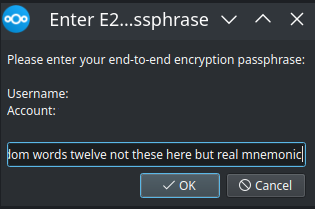
Then you can start synchronizing the encrypted folder.
Special Mentions
Thank you Daniel for explaining how the E2EE app is supposed to be used. However, unfortunately the app fails to even do what it is intended to do.
Appendix
Problems syncing certain files and folders
I recently made fresh install of Nextcloud AIO and had to resync all my files to my new server. All unencrypted files went fine but E2E encrypted files got mixed results. Most of them worked fine but some files or folders just didn’t upload.
This could be because my tmpfs mountpoint got full on my workstation. I cleared the /tmp directory but I still had issues. The only thing I could was to delete the directories that couldn’t be synced and wait for the sync to finish. Then I uploaded the files that didn’t get synced on the first run.
~$ df -h
Filesystem      Size  Used Avail Use% Mounted on
tmpfs           1.6G  2.9M  1.6G   1% /run
/dev/dm-0       230G  123G   96G  57% /
tmpfs           7.7G  163M  7.6G   3% /dev/shm
tmpfs           5.0M  8.0K  5.0M   1% /run/lock
efivarfs        246K   95K  147K  40% /sys/firmware/efi/efivars
tmpfs           7.7G     0  7.7G   0% /run/qemu
tmpfs           7.7G  3.8G  4.0G  49% /tmp <-- filling up while syncing
/dev/nvme0n1p2  3.9G  209M  3.5G   6% /boot
/dev/nvme0n1p1  300M  6.3M  294M   3% /boot/efi
tmpfs           1.6G  184K  1.6G   1% /run/user/1336400004
My recommendation is therefore to not upload too many E2E encrypted files at the same time. I tried to upload ~8GB of files at once and that may have been the problem.
More Syncing Problems
Even if tmpfs is not filled up, I still get syncing problems. It’s a shame because this app could have been very useful, but unfortunately the rumors are true that this app is very unpredictable. It may work for a while, then break after an update.
Hey great post, I've been curious about Nextcloud e2ee options for years without taking time to give them a try...
So basically from your experience the best and safest approach would be to use a tool like cryptomator rather than the native app right? Either way it's not possible to use e2ee and navigate through the encrypted files in the gui in the browser right?